Integrations · Microsoft Teams
Connect noombat to Microsoft Teams
noombat posts its alerts and the morning list straight into a Teams channel of your choice. No app install, no admin rights, no cost: one workflow link, about 5 minutes.
Direction
noombat posts into it
Access
A Teams workflow link that posts cards into one channel
Time
About 5 minutes
Who
Any member of the team
Cost on your side
Nothing: the Workflows app ships with Teams on every business plan
Before you start
What to have ready.
- Any team member can do this: no Microsoft 365 admin, no app registration, no consent flow. Some organisations restrict who may add apps to a team; if that is you, bring whoever manages the team.
- It is free. The Workflows app ships with Teams on every business plan, and the webhook uses no premium licence and no user seat.
- The alerts channel must be a standard channel. Your team being private is fine; it is private channels (the ones with a lock icon) that Microsoft's posting bot cannot write to.
- GCC, GCC High and DoD tenants: Microsoft provides no posting bot in US Government clouds. Contact us for the alternative setup instead of following this guide.
What noombat posts
What lands in Microsoft Teams.
Setup
4 steps, about 5 minutes.
- 1Pick or create the channel
- 2Add the webhook workflow
- 3One quick check, then send us the link
- 4If posts fail with "sender is not a member": the fix, step by step
- 1
Pick or create the channel about 1 minute
Alerts read best in a channel of their own. Most customers create one called noombat in the team where the revenue people live. An existing standard channel works too.
the team > ... > Add channel- Name: noombat
- Channel type: Standard, "Everyone on the team has access"
- Layout: Posts (alerts are a feed)
- Tick Recommend that people show this channel in their channel lists, so it does not start out hidden
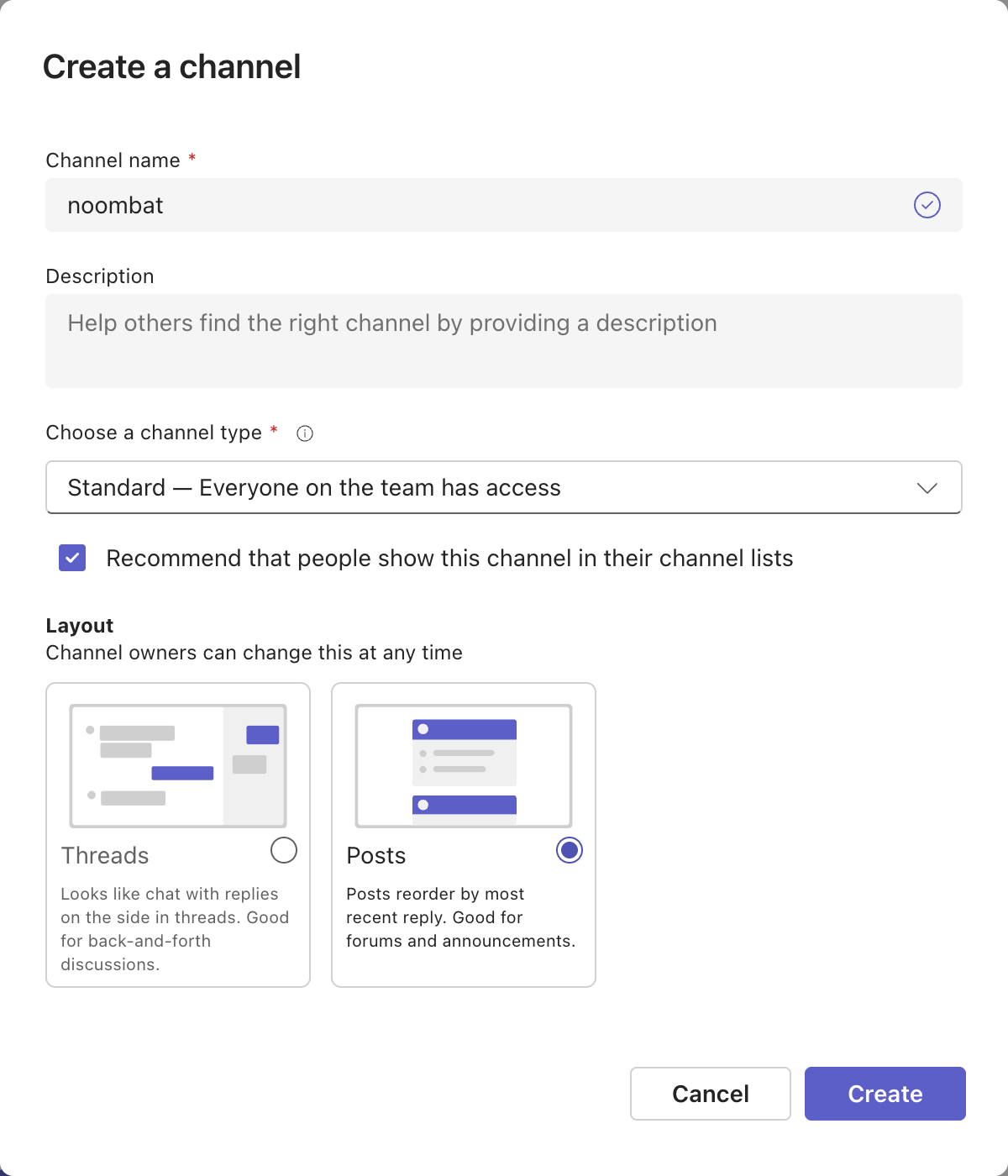
Standard type, Posts layout. The team itself can stay private. - 2
Add the webhook workflow about 2 minutes
Teams ships a built-in automation template that receives noombat's alerts and posts them as cards. Adding it takes two clicks and creates the link we connect to.
the channel > ... > Workflows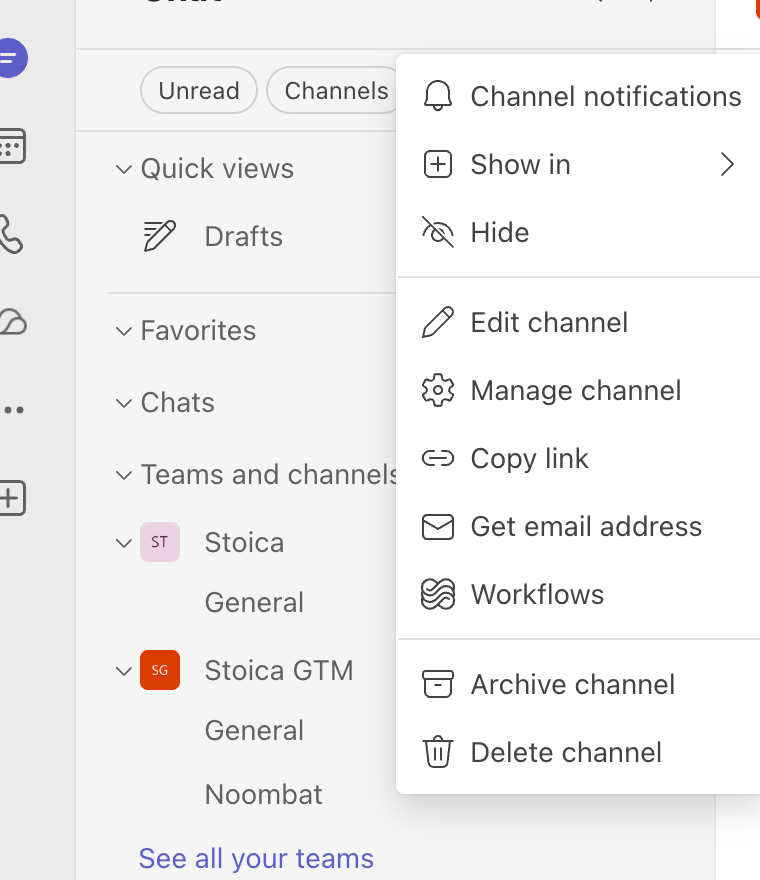
Workflows lives in the channel's menu. Type webhook in the search box and pick Send webhook alerts to a channel, the template by Microsoft that uses standard connectors only. Name it noombat and confirm the team and channel.
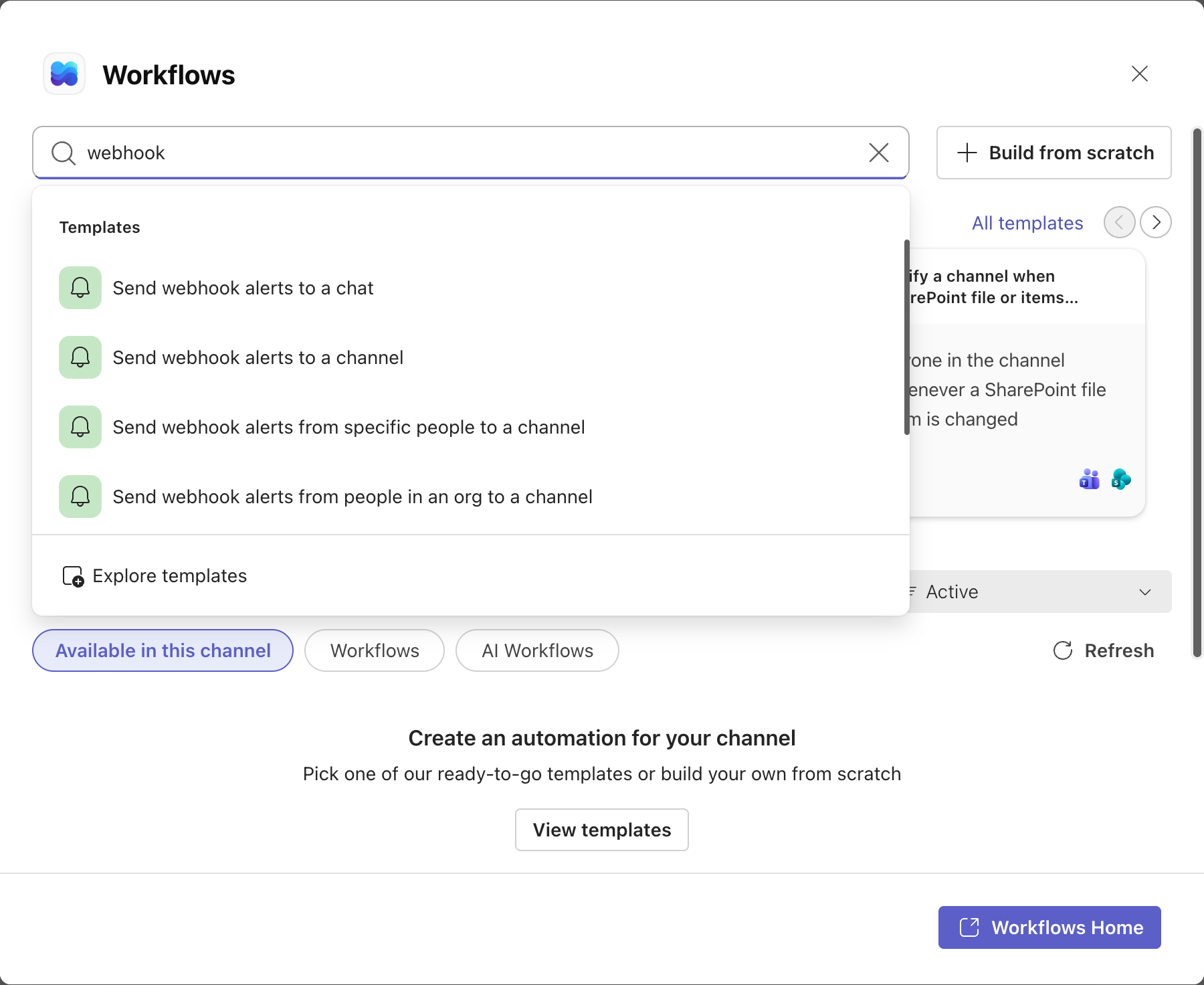
Type webhook and the template is the top channel result. The workflow's page opens. It is also where its delivery run history lives, which is worth remembering. Click Copy webhook link: that link is what you send us in step 3. It is never shown on screen again, so treat it like a password from here on.
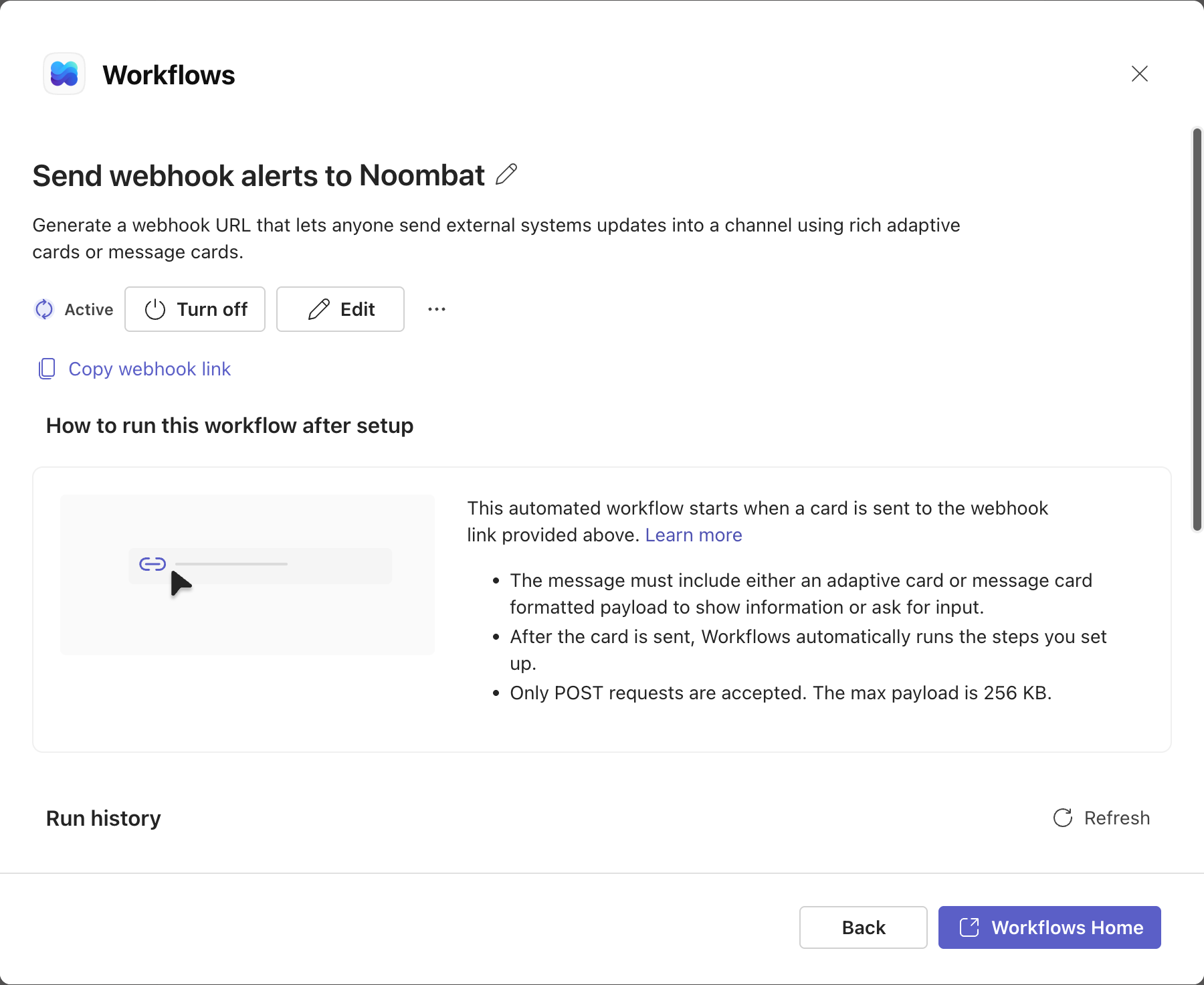
Copy webhook link puts the link on your clipboard. This page is also where the run history lives. - 3
One quick check, then send us the link about 2 minutes
One thing to verify before the link leaves your hands. Microsoft's setup occasionally saves a broken channel selection (the fields show a lone
@instead of your team and channel), and when it does, every post fails while everything looks fine from the outside. Thirty seconds now saves a support round-trip later.the workflow's page > EditLook at the Team and Channel fields. If they show your team and channel by name, you are done: click Back without saving. If either shows
@or is empty, re-select your team and channel from the dropdowns, then Save.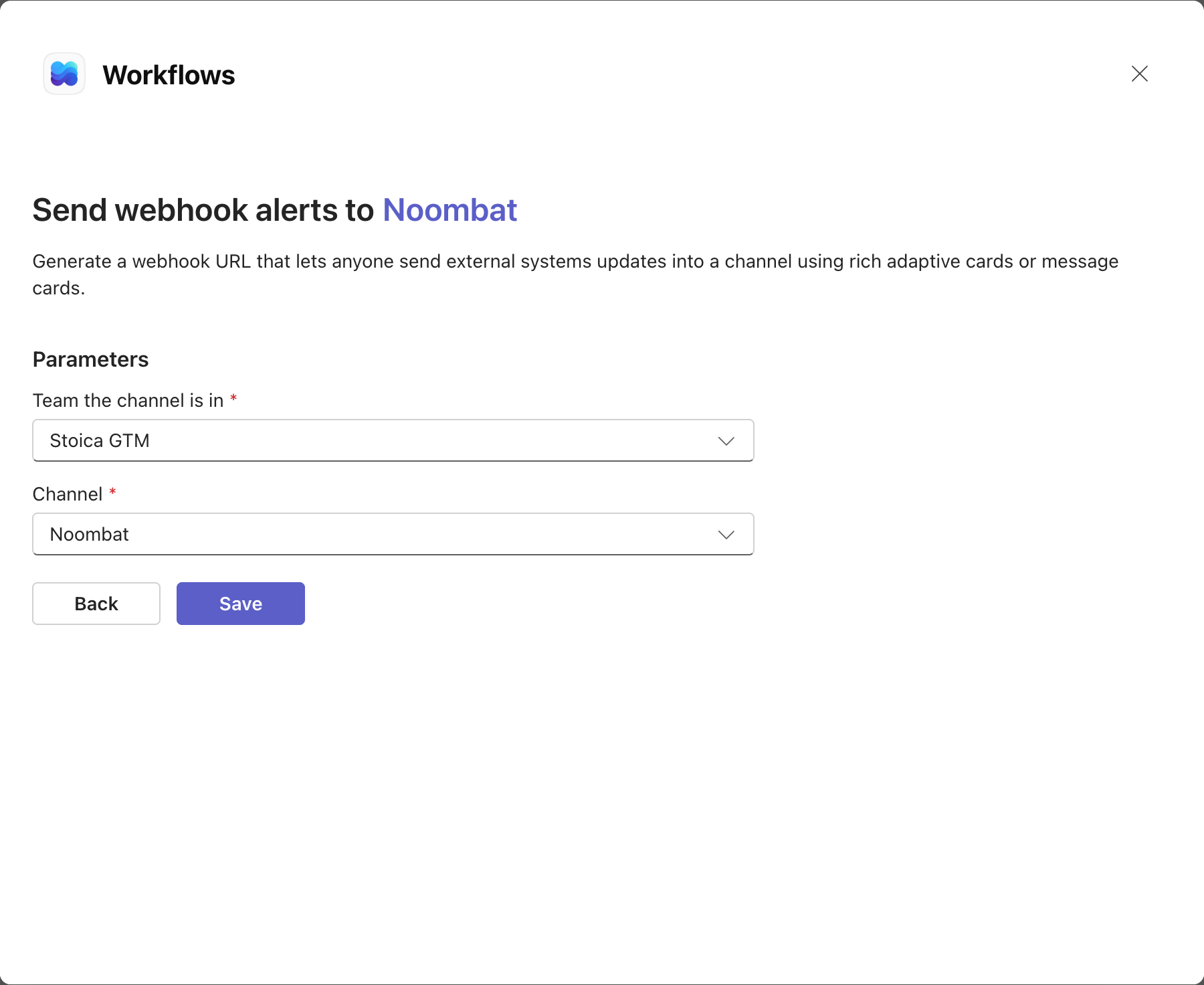
Correct: Team and Channel show real names. A lone @ here is the one thing to fix. Once the link arrives we send a test card the same day and confirm back to you. Then you choose which alerts the channel gets, and they start arriving.
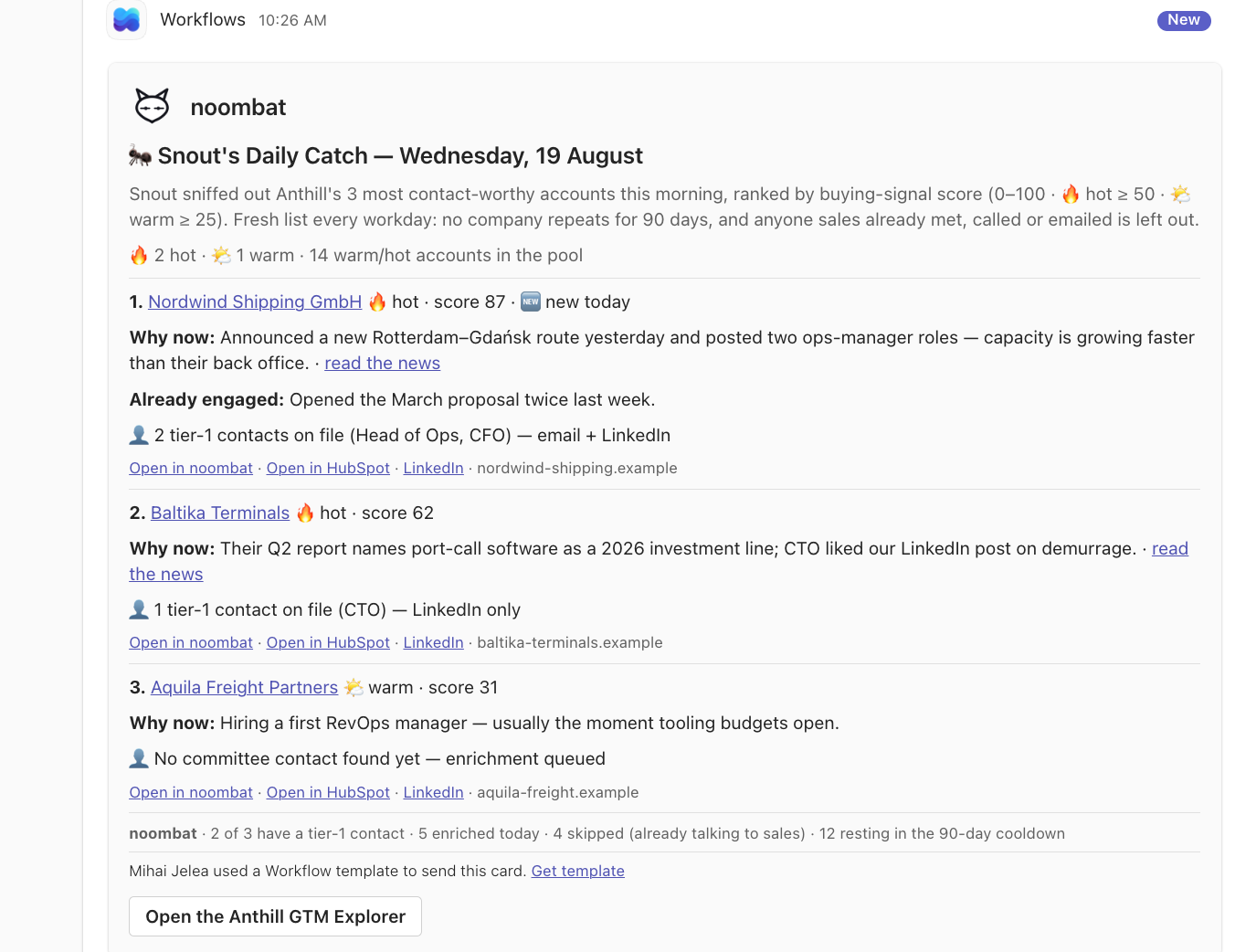
Posted by the Workflows app. The noombat mark leads every card, and every account links back into your workspace. - 4
If posts fail with "sender is not a member": the fix, step by step about 5 minutes, only when the run history says so
For that failure the workflow is addressed to a broken target (a lone
@where your team and channel should be), and re-selecting them is the whole fix. The workflow posts from two places internally, and both need it.make.powerautomate.com > My flows > the workflow > EditKeep the environment picker, top right, on your Default environment. Expand everything: the flow ends in a fork with a posting action on each side.
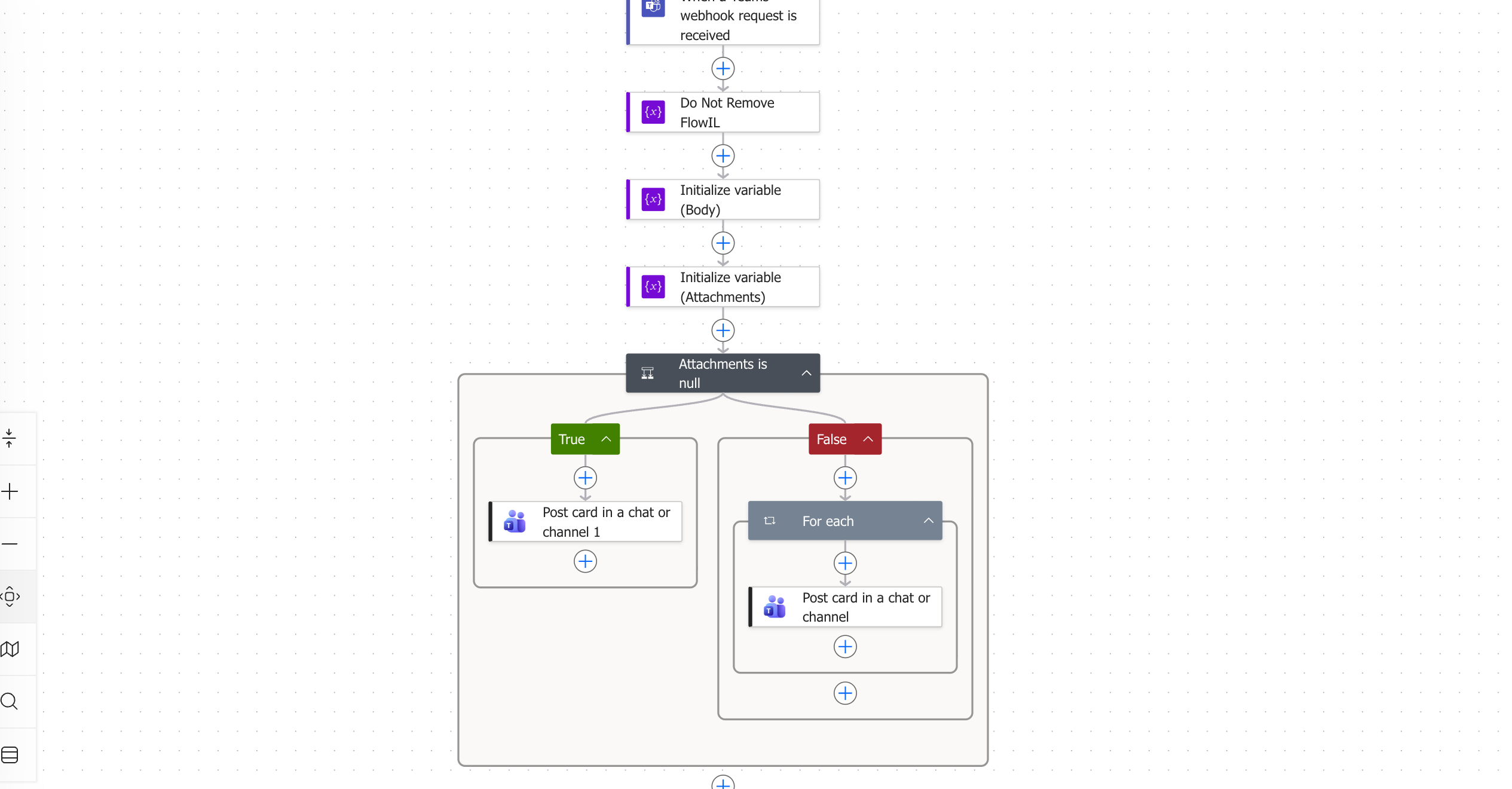
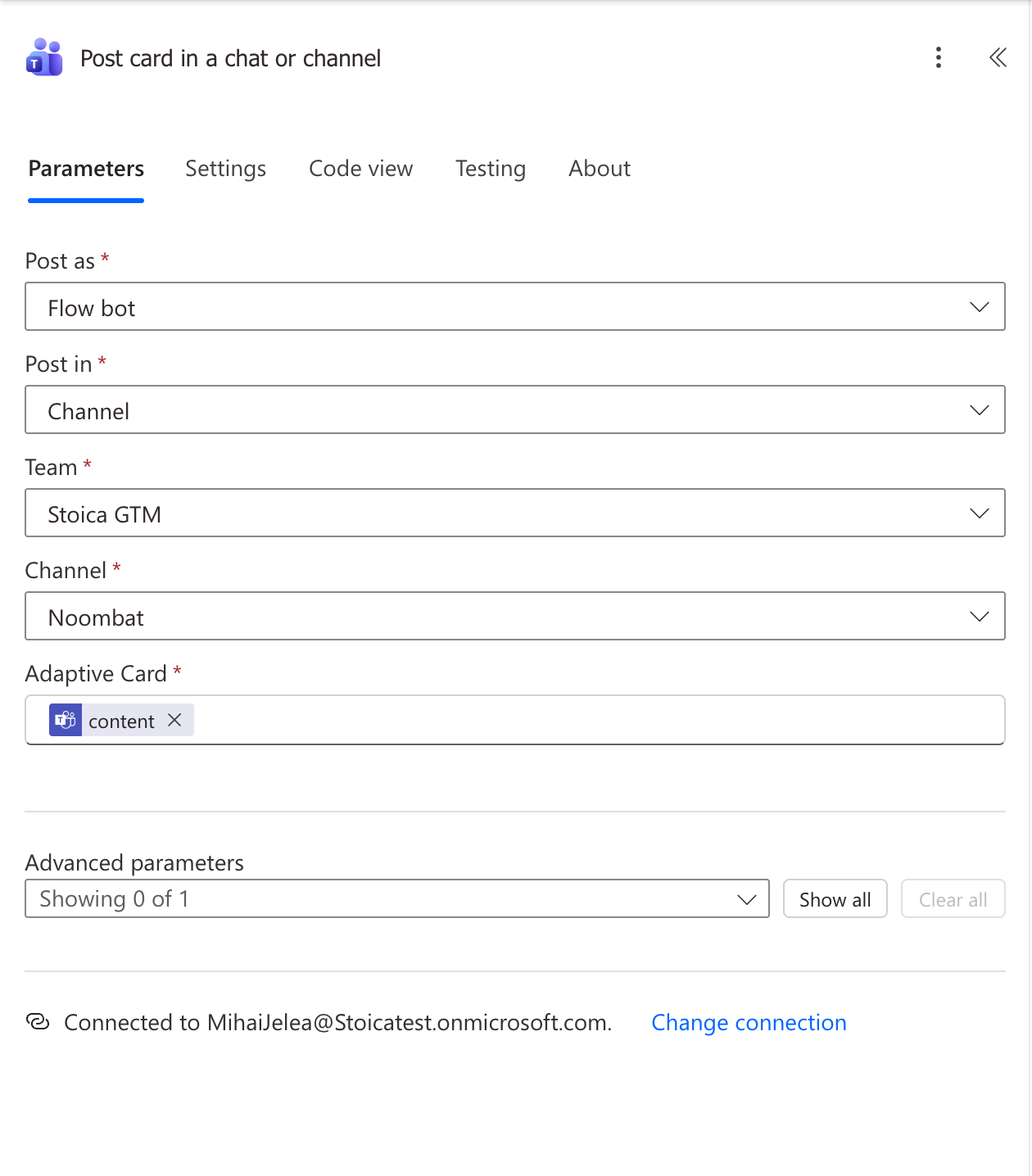
The two posting actions to check: one under True, one inside the For each under False. Click Post card in a chat or channel 1 (under True). In its Parameters, the Team and Channel fields should name your team and channel. If either shows
@or is empty, open the dropdown and pick them. Leave the Adaptive Card field alone; the pink token in it is correct.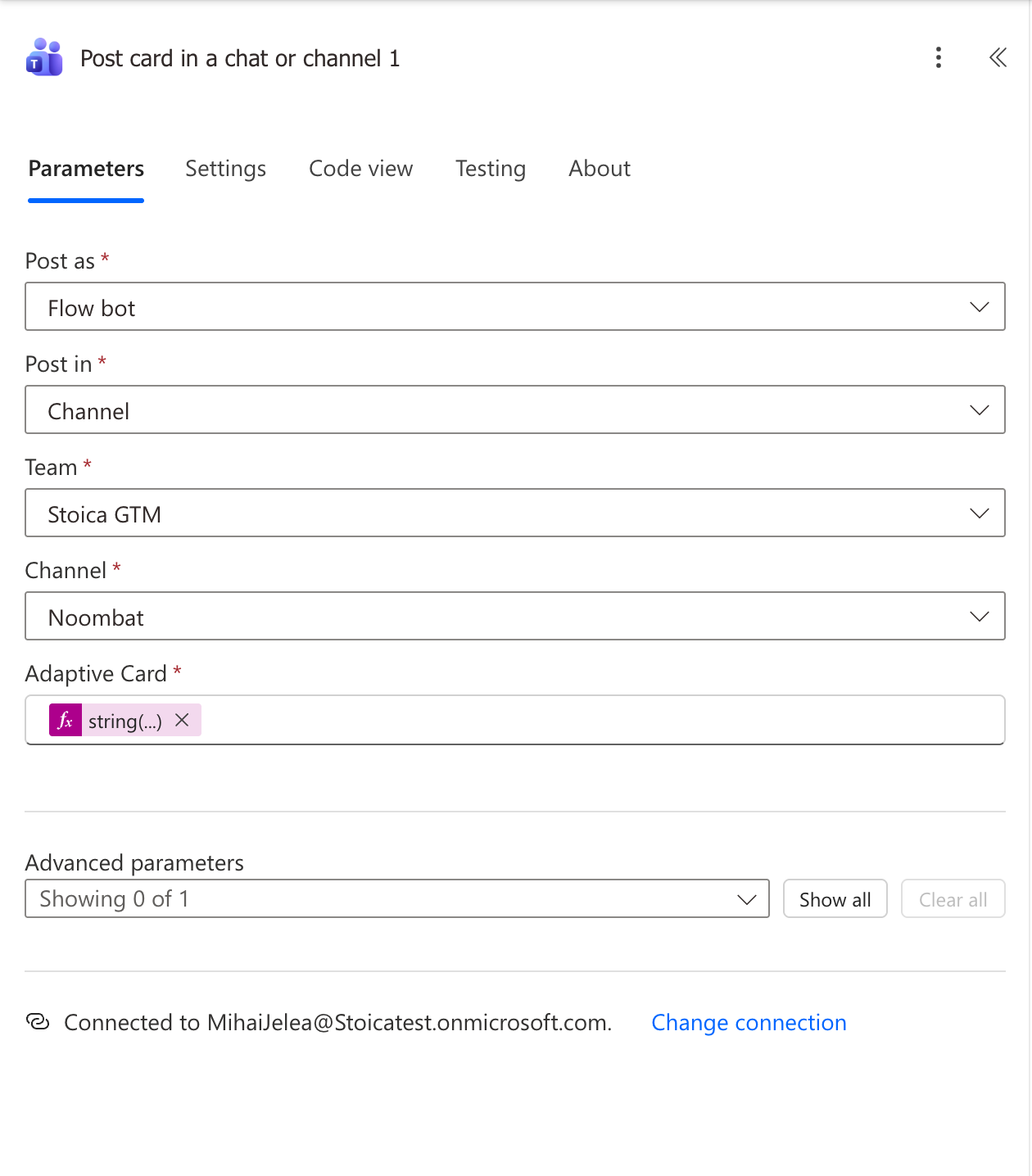
After the fix: Team and Channel carry real names, everything else untouched. Do the same for Post card in a chat or channel, inside the For each under False. Same two fields, same fix.
The second posting action, inside the For each. This one is easy to miss. Click Save (top right) and wait for the confirmation before closing the tab: an abandoned edit session in this editor is itself a known way to break the workflow. The next alert delivers, and no new link is needed.
Troubleshooting
What you might see, and the fix.
Every row is a failure we have met or verified. If yours is missing, send it over.
Security and data
The questions a security review asks.
What can this link do?
Post cards into that one channel. It cannot read messages, files or members; it grants noombat no access to your tenant, and nothing is ever read back. It is the only credential in this setup, and it is post-only: the worst anyone holding it could do is post a message into that channel. We treat it like a password all the same.
Why do the posts come from "Workflows" and not from noombat?
Microsoft fixes the sender identity of webhook workflows: every one posts as the Workflows app, and that name cannot be changed. The noombat mark and name lead every card instead, so there is never a doubt who it is from. A full Teams app would change the sender name, and it needs an app install and admin consent in your tenant; we keep this connection lighter than that.
What does noombat post?
Whatever you subscribe the channel to: the morning list (the companies worth a call today, with the reasons), an account turning hot, a meeting booked, a lead routed to someone, a scheduled routine finishing, or a data sync failing. Each is a card with a link back into your noombat workspace, the same alerts Slack customers get.
How do we revoke it?
Delete the workflow, in the channel's Workflows list or at make.powerautomate.com. The link dies with it, at once and for good, and nothing on our side can restore it. Re-adding the workflow creates a fresh link, which is also the rotation procedure: delete, re-add, send us the new one.
Can we use a private channel?
Microsoft's Workflows bot posts to standard channels only; that is a platform limit. The pattern that works: a standard channel inside your team, the team itself being private, which already limits the audience to team members. If a private channel is a hard requirement, ask us about the service-account setup.
What does this cost on the Microsoft side?
Nothing. The Workflows app ships with Teams on every Microsoft 365 business plan, the webhook template uses standard connectors only (no premium Power Automate licence), and no user seat is consumed.
Can alerts go to several channels, or several teams?
Yes. Each channel gets its own workflow and its own link, and each link is bound to exactly one noombat workspace on our side, so one customer's alerts can never land in another's channel. Repeat this guide per channel and send us each link, telling us what should go where.
Bring your Microsoft Teams admin and we do it together.
A 30-minute call on your market, and the setup above on a screen share if you want it.
Other integrations
It reads your noombat board
ChatGPT
Ask ChatGPT which companies to call this week, why now, and who can introduce you. Read only, one board per connection.
About 5 minutes · A member of a workspace where AI apps are switched on
It reads your noombat board
Claude
Ask Claude for a brief on an account, who can introduce you and what changed this month. Read only, one board per connection.
About 5 minutes · A member of a workspace where AI apps are switched on
noombat reads from it
Salesforce
A dedicated read-only integration user with its own permission set. Your org enforces the access, one user carries the audit trail, and one click revokes it.
About 20 minutes · A System Administrator
All integrations · checked 10 October 2026